How to Use Bitcall Webphone in Your Browser
How to Use Bitcall Webphone in Your Browser
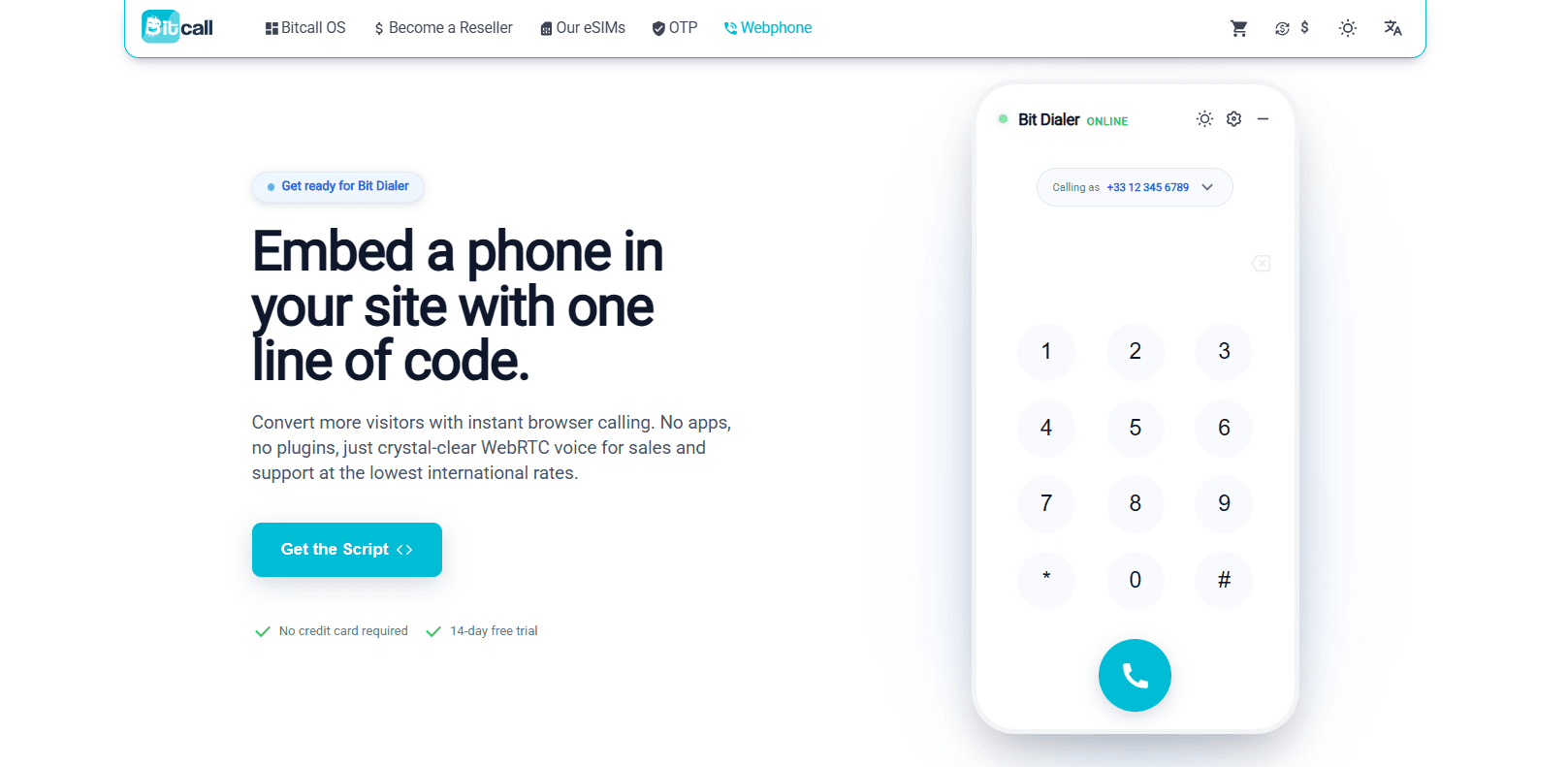
Make calls directly from your browser using your Bitcall account no installation required.
What You Will Need
An active Bitcall account (panel.bitcall.io)
Your Bitcall username and password
A modern browser (Google Chrome or Safari recommended)
Microphone access enabled on your device
What Is Bitcall Webphone?
Bitcall Webphone is a browser-based SIP phone (WebRTC) that allows you to:
Make and receive calls instantly.
Save your login for a "One-Tap" experience.
Install it as a PWA (Progressive Web App) so it stays on your taskbar like a real application.
Step-by-Step Setup
Step 1 : Open the Webphone
Visit the official Webphone link: https://webphone.chatup.ch/demo#api
Step 2 : Log In
Enter the same credentials you use for your Bitcall panel:
Username: Your Bitcall email or username.
Password: Your Bitcall password.
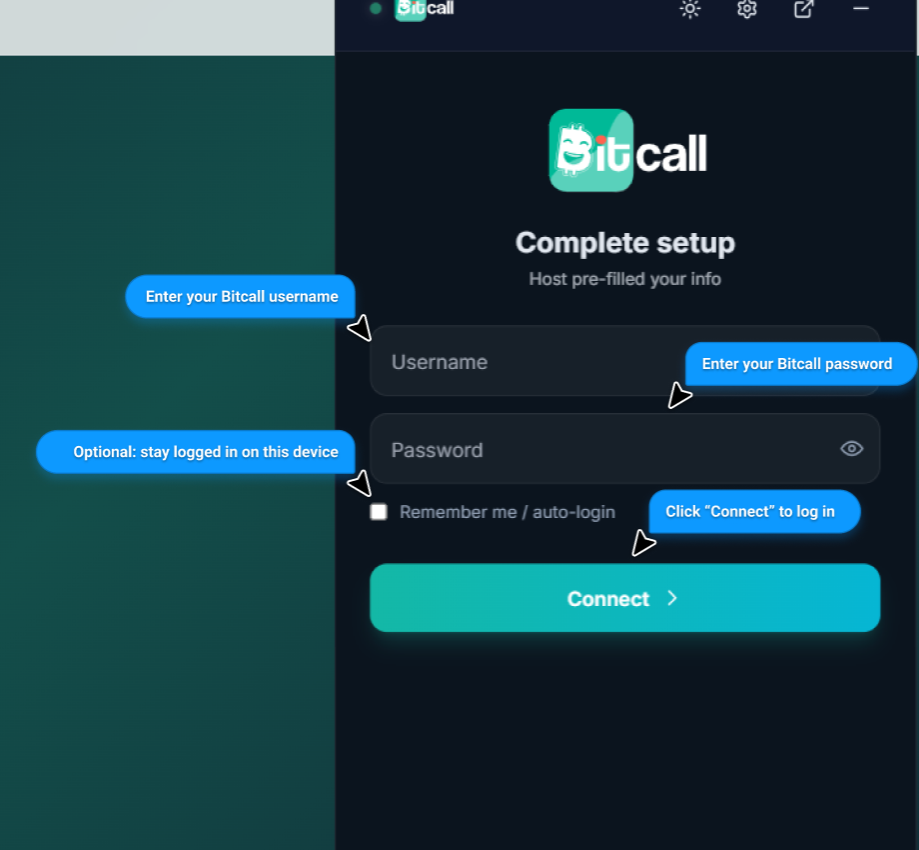
Step 3 : Select Your Caller ID
Before making a call, click on “Calling as” at the top. Select the phone number you want the receiver to see. If no number is selected, the call might fail or show as "Anonymous."
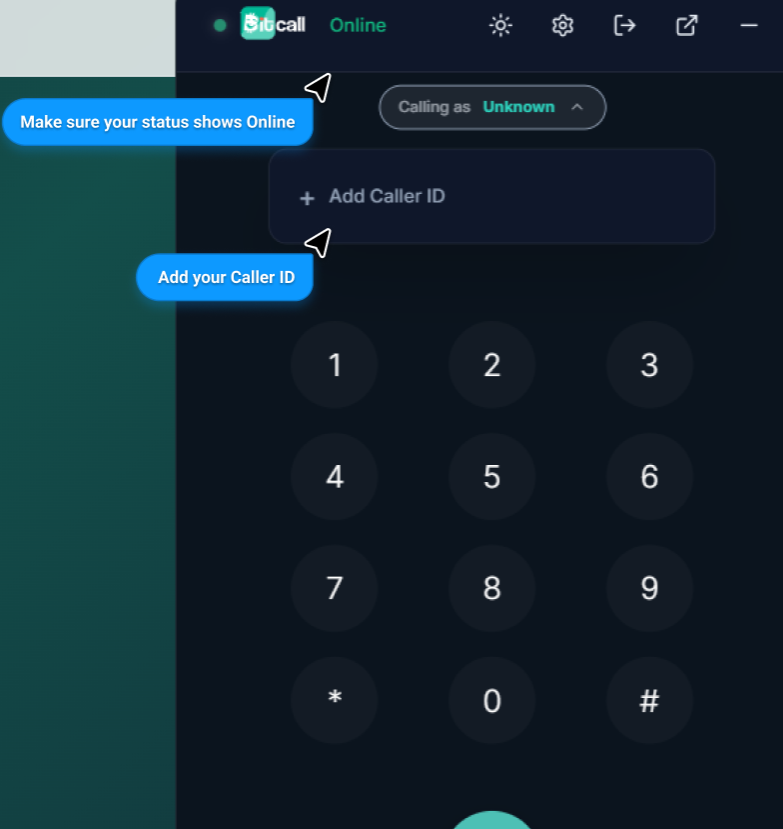
Step 4 : Make & Receive Calls
Outbound: Type the number in international format (e.g.,
336...) and click the green Call button.Inbound: Keep the tab open. When a call arrives, you will hear a ringtone and see an "Answer/Decline" popup.
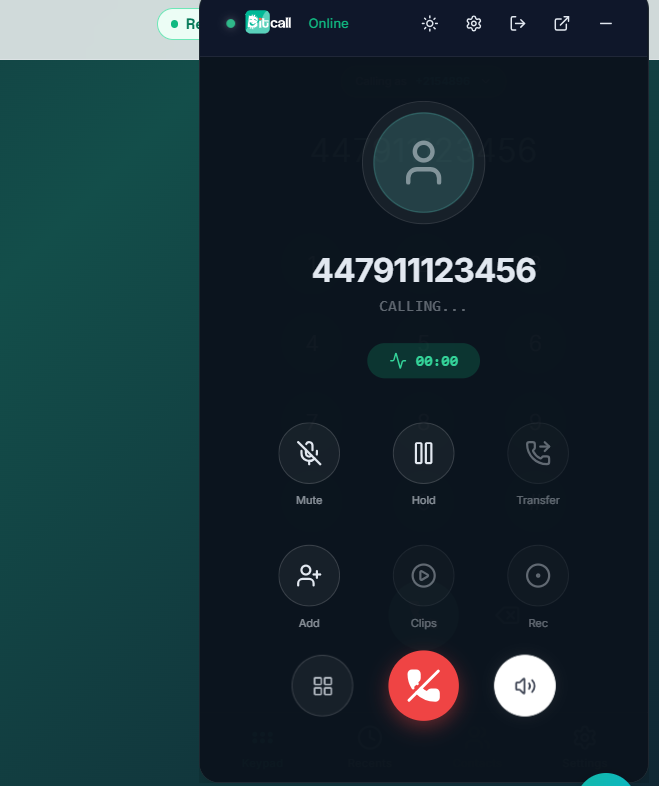
Features Available During a Call
Mute / Unmute: Silence your microphone.
Hold: Put the caller on hold (they will hear hold music).
Record: Start a recording of the conversation.
DTMF Tones: Open the keypad during a call to press numbers for IVR menus.
Audio Devices: Change your microphone or headset output on the fly.
Transfer: Send the current call to another Bitcall user or external number.
Expected Result
You can handle business calls directly from your laptop or phone browser. No softphone app like Zoiper or Bria is needed.
Troubleshooting
Microphone Blocked: If you can't hear anything or the caller can't hear you, click the Lock icon in the browser address bar and ensure "Microphone" is set to Allow.
Login Failed: Ensure you are using your Panel Login, not your SIP Account Credentials (unless specified).
Connection Error: If you are behind a corporate firewall, the Webphone might fail to register. Try using a personal hotspot to verify.
Mobile Safari: On iPhone, ensure you don't have "Silent Mode" turned on, or the ringtone might not play.
How to Embed Bitcall Webphone in Your Website or CRM
No next post