How to Purchase, Install & Activate Your Bitcall eSIM The Complete Guide for 2026
How to Purchase, Install & Activate Your Bitcall eSIM The Complete Guide for 2026
A complete guide to purchasing, installing, and activating your Bitcall eSIM — includes QR code setup, one-tap iOS install, manual configuration, and device compatibility.
What You Will Need
A compatible eSIM device: Check compatibility at bitcall.fr/esim
An active internet connection on your device to install the eSIM.
A Bitcall account with sufficient balance (if buying from the panel).
Step 1: Purchase Your eSIM [Panel Step]
Bitcall offers two ways to purchase an eSIM — from your panel if you have an account, or directly from the website as a guest.
Option A — Purchase from the Bitcall Panel:
Log in to panel.bitcall.io.
Click E-SIM in the left sidebar.
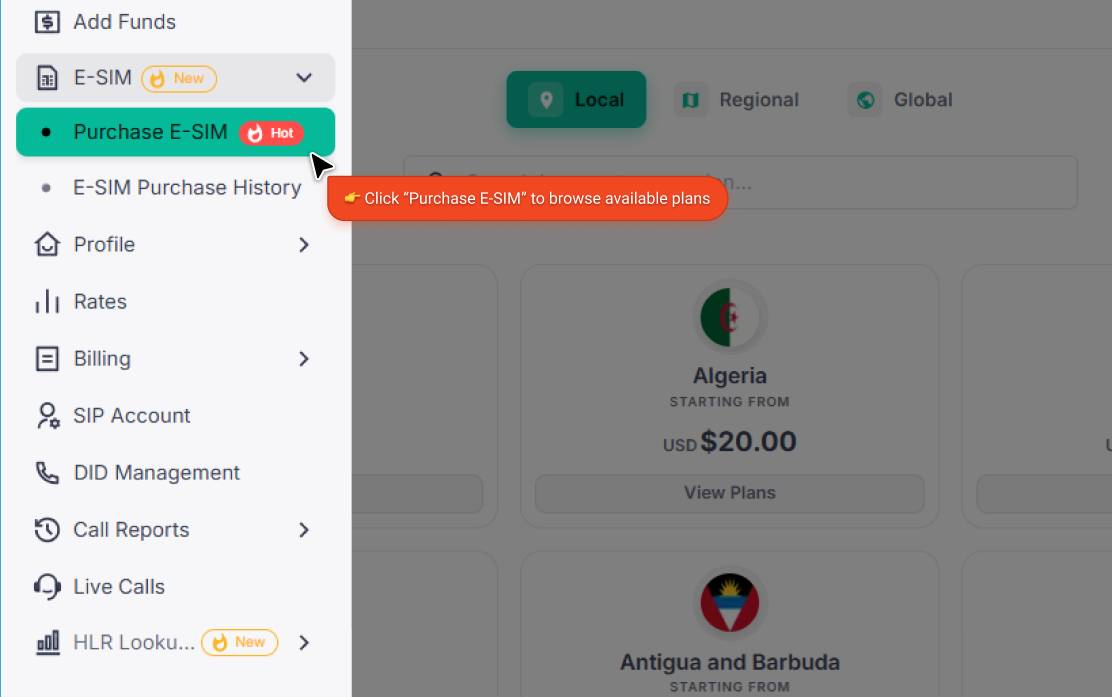
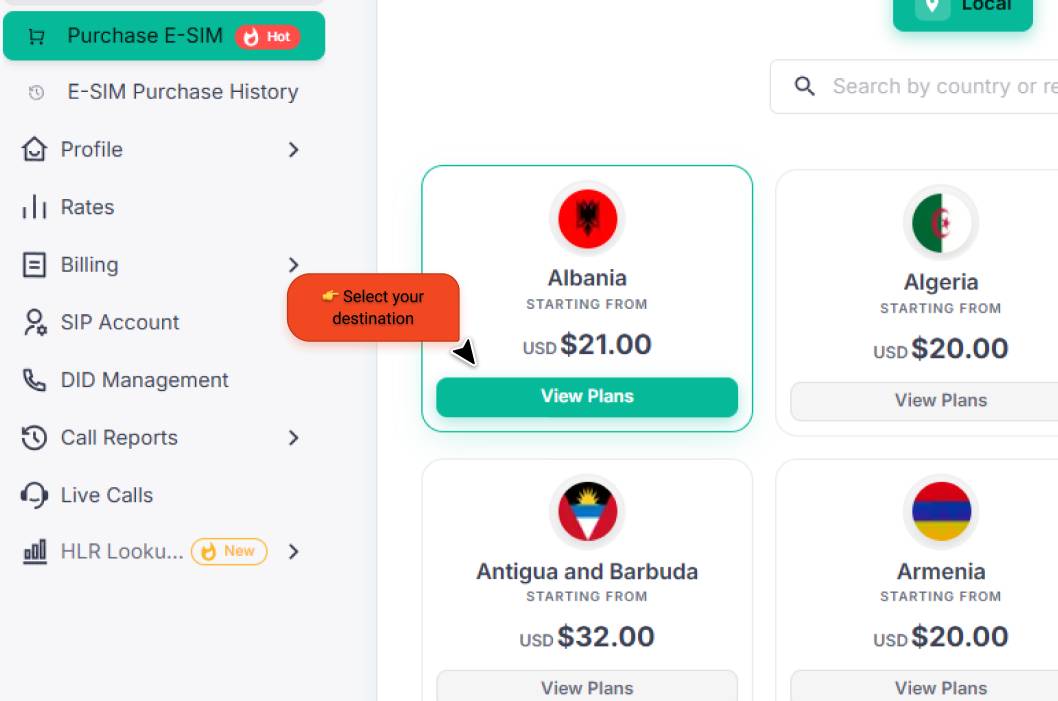
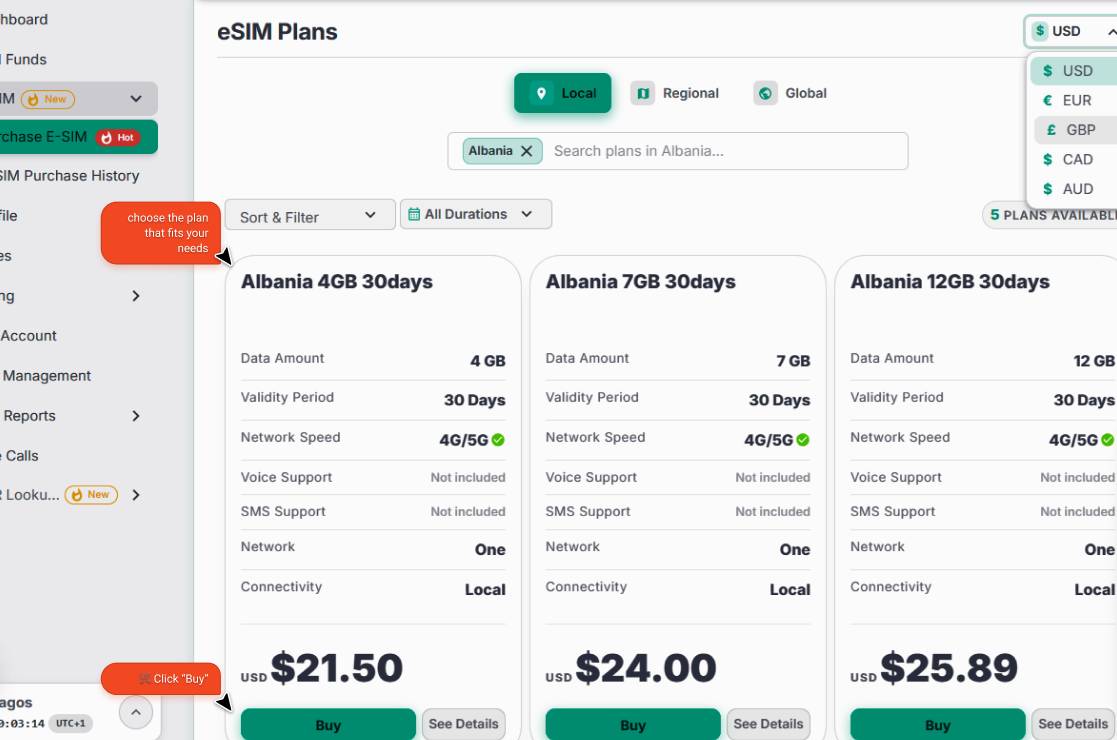
Browse the available plans. You can see details for each:
Data Amount: (e.g. 1GB, 5GB, 10GB).
Validity: (e.g. 7 days, 30 days).
Network: The local carrier used (e.g. Orange, T-Mobile).
Speed: 4G or 5G coverage.
Connectivity: Local, Regional, or Global.
Click Buy on your selected plan.
If your balance is sufficient, the purchase completes instantly.
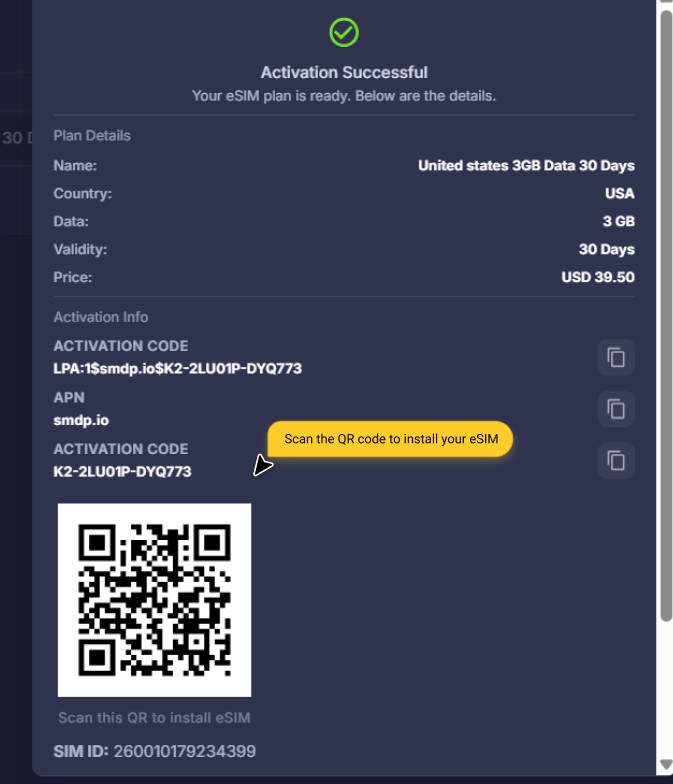
Option B — Purchase as a Guest (No Account):
Go to bitcall.fr/esim.
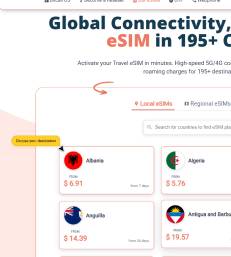
Browse the plans and click Buy.
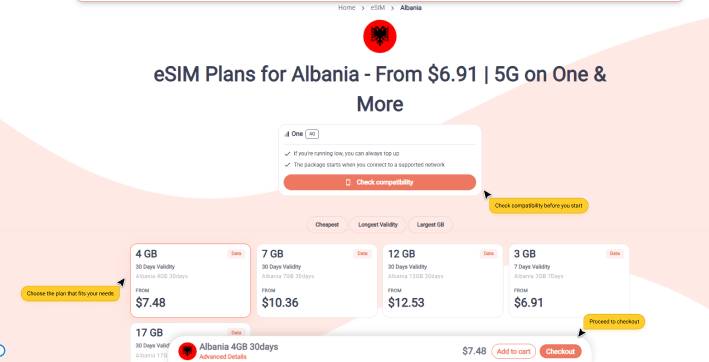
Complete the payment via Credit Card or Crypto.
eSIM Plan Types Explained
Plan Type | What It Includes | Best For |
|---|---|---|
Data-Only | High-speed internet access. No incoming or outgoing phone calls. | Travelers who use WhatsApp, iMessage, or VoIP for calls. |
Data + Call | Full SIM experience — includes data and a phone number where supported. | Business travelers who need a local number. |
Global | A single eSIM that works in 100+ countries. | Multi-country trips or frequent travelers. |
Regional | Optimized plans for areas like Europe, USA, MENA, or Asia. | Trips within a single region. |
Device Compatibility
Before purchasing, make sure your device supports eSIM. Click the Check compatibility button on bitcall.fr/esim to verify your specific model.
WARNING
Your phone must be "Unlocked" (not network-locked to another carrier) to use a Bitcall eSIM. If your device was purchased through a carrier contract, contact them to confirm it is unlocked before buying.
Step 2: Install Your eSIM [Device Step]
After purchase, you will receive a confirmation email containing an iOS click-to-install link and a QR code for all other devices.
IMPORTANT
Before Starting: You need an active internet connection to install the eSIM, and each eSIM can only be installed once on a single device.
Choose Your Installation Method:
Option A — One-Tap Install (iOS only): In your confirmation email, tap "Install eSIM on this iPhone".
Option B — Scan the QR Code: Go to Settings → Mobile / Cellular → Add eSIM and scan the QR code from your email or panel E-SIM → History.
Option C — Manual Setup: Copy the SM-DP+ address and activation code from your email and paste them into the "Add Manually" section of your phone's SIM settings.
CAUTION
After installing your eSIM, you MUST enable these two settings, or it will not work:
Mobile Data: Set your Bitcall eSIM as the active data plan.
Data Roaming: Ensure Data Roaming is turned ON for the Bitcall profile in your phone settings.
Step 3: Manage Your eSIMs [Panel Step]
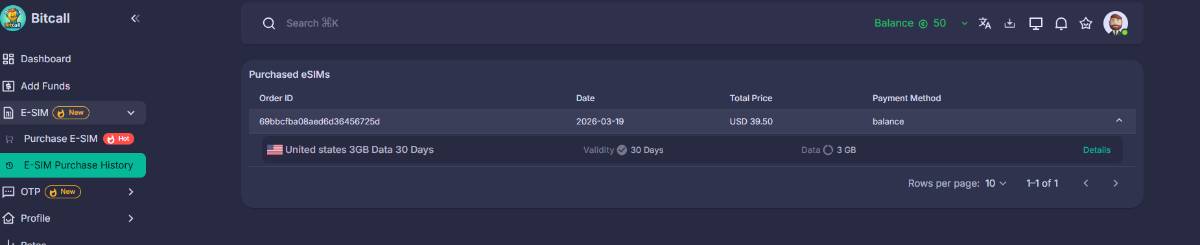
Go to the E-SIM → History tab in your Bitcall panel to see:
Your QR codes.
Activation status.
Manual setup details (SM-DP+ address).
Expected Result
Your eSIM shows as "Active" in your phone settings. You are connected to the local carrier's data network.
Troubleshooting
Problem | Cause | Solution |
|---|---|---|
Device not compatible | Phone is "Network Locked" to another carrier. | Ensure your phone is an "Unlocked" device to use a Bitcall eSIM. |
Cannot find QR code | Email went to spam. | Check your spam folder or go to E-SIM → History in your Bitcall account. |
No data connection | Data Roaming is turned off. | Verify that Data Roaming is turned ON for the Bitcall eSIM profile. |
Only installed once | QR code was already scanned. | A QR code can only be scanned and installed one time. If you delete the eSIM from your phone, you cannot scan it again. |
Social Caption
Your next trip starts with one tap. No kiosks. No plastic. No roaming surprises. Purchase → Install → Connect in under 3 minutes. QR Code. One-Tap iOS. Manual SM-DP+ Setup. Bitcall eSIM Connectivity without borders.
How to Use Bitcall HLR Lookup
No next post
On This Page
What You Will Need
Step 1: Purchase Your eSIM [Panel Step]
eSIM Plan Types Explained
Device Compatibility
WARNING
Step 2: Install Your eSIM [Device Step]
IMPORTANT
CAUTION
Step 3: Manage Your eSIMs [Panel Step]
Expected Result
Troubleshooting
Social Caption