How to Use Bitcall HLR Lookup
How to Use Bitcall HLR Lookup
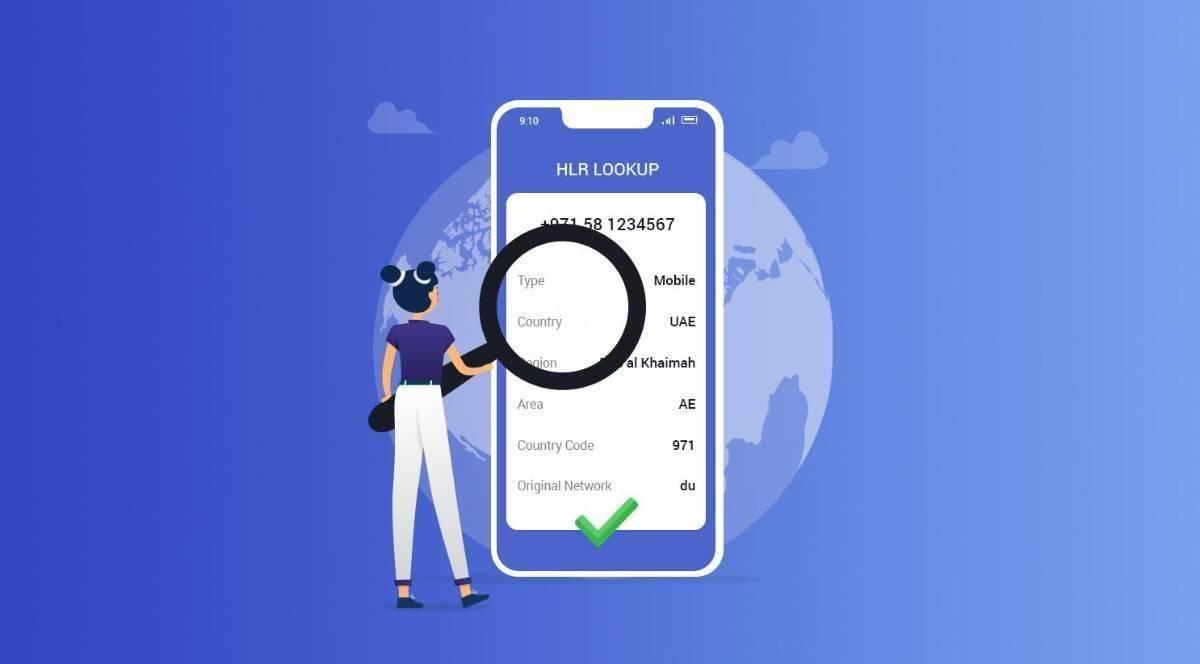
Use Bitcall's HLR Lookup tool to validate phone numbers in real time — check if a number is active, ported, roaming, or unreachable before making a call or sending an SMS.
What You Will Need
An active Bitcall account (panel.bitcall.io)
A list of numbers to check (in international format)
Sufficient account balance
What Information Does HLR Lookup Provide?
HLR (Home Location Register) queries the mobile network directly to find:
Is the number real?: Valid/Active vs Invalid/Inactive.
Current Status: Is the phone reachable (switched on) or out of service?
Portability (MNP): Has the user moved their number to a different network operator?
Roaming Status: Is the person currently in another country?
Carrier Details: Which network owns the number (e.g. Vodafone, Orange, etc.)?
Lookup Types & Routes
Bitcall offers different "routes" depending on what information you need:
HLR Lookup: Full real-time network status (Active, Roaming, Reachability).
NT Lookup: Basic Number Type check (Mobile vs Landline).
MNP Lookup: Detailed Portability check only (Current Network Operator).
Converged Lookup: High-speed check that combines all of the above.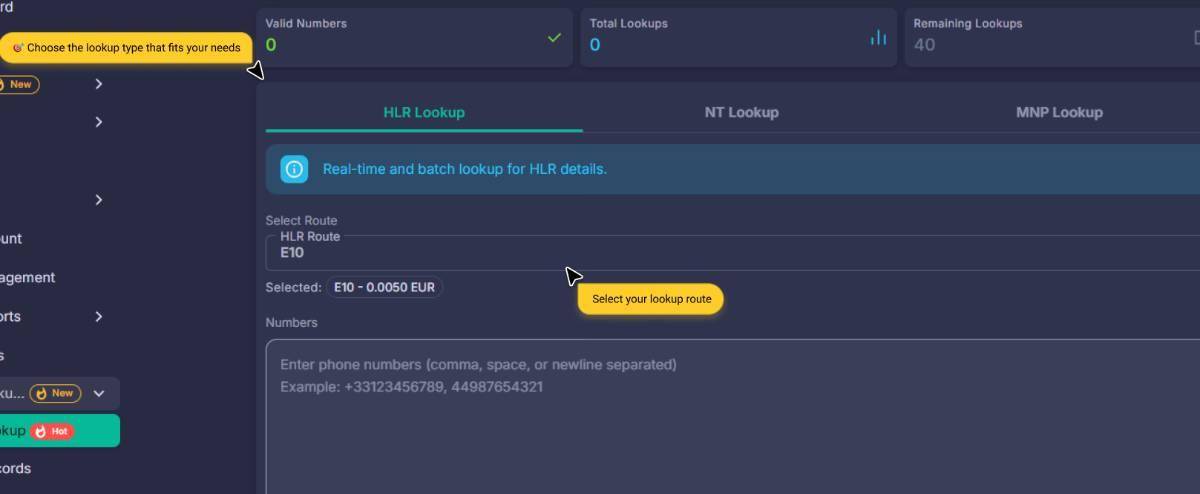
How to Run a Lookup
Step 1 : Go to HLR Lookup
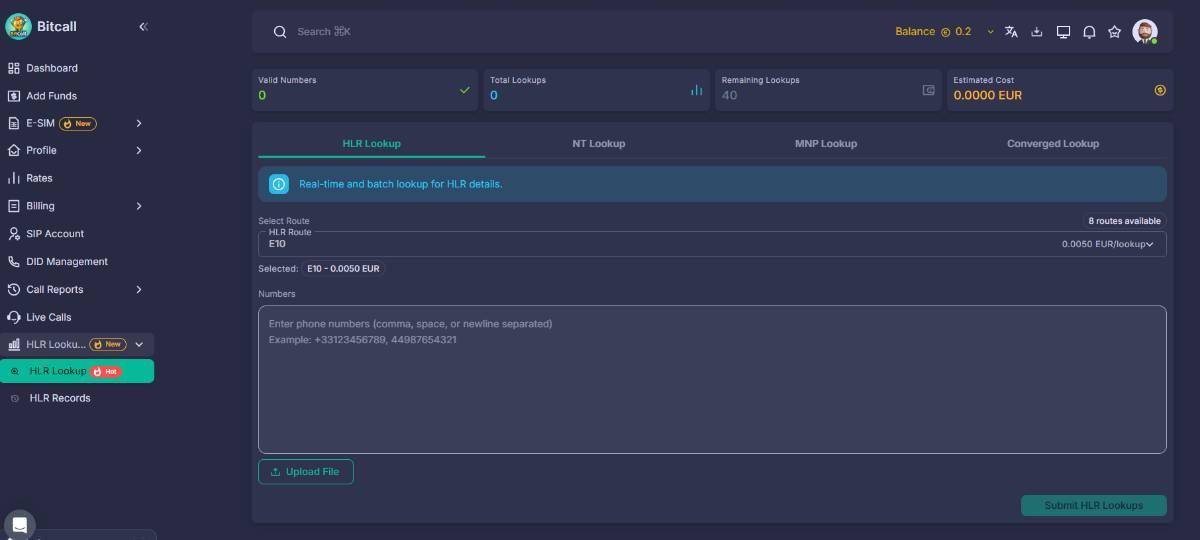
Log in to panel.bitcall.io and click HLR Lookup in the left sidebar.
Step 2 : Submit Your Numbers
Paste Directly: Enter numbers (e.g. 13125550100) separated by commas or new lines.
Bulk Upload: Click Upload File to submit a .csv or .txt list. No headers are required.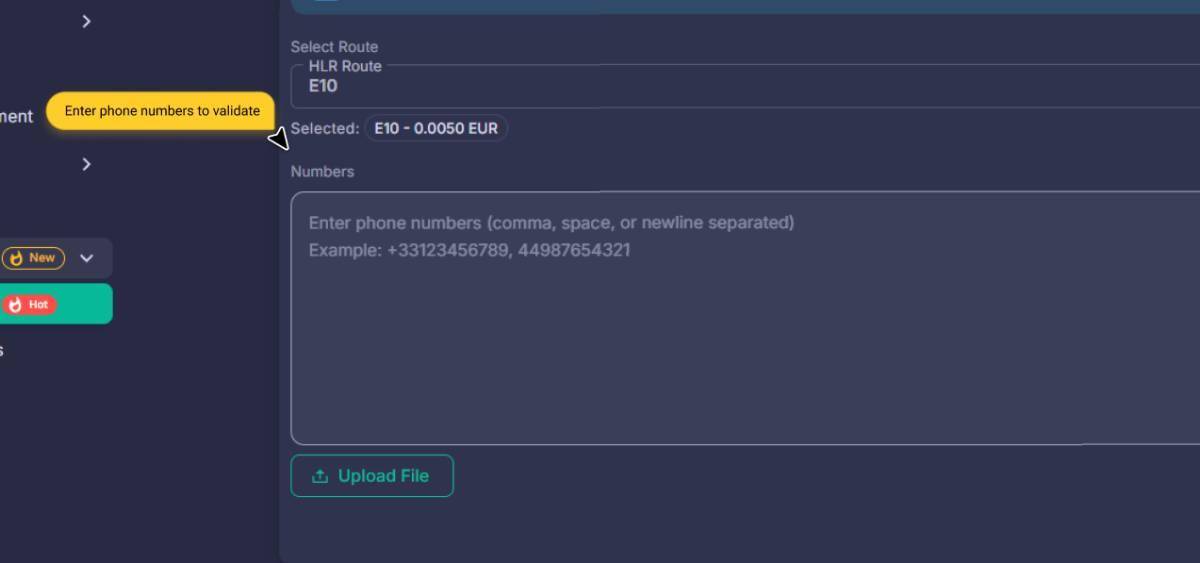
Step 3 : Review Your Results
The table will update instantly with the results:
Status: Reachable, Unreachable, or Unknown.
Current Network: Shows the current operator (useful for routing).
Country & Roaming: Detects where the number is currently being used.
Managing Your History (Lookup Records)
All your past lookups are stored in the HLR Records section for easy management.
Filter by Mode
Toggle between Single or Batch lookup modes to find specific records.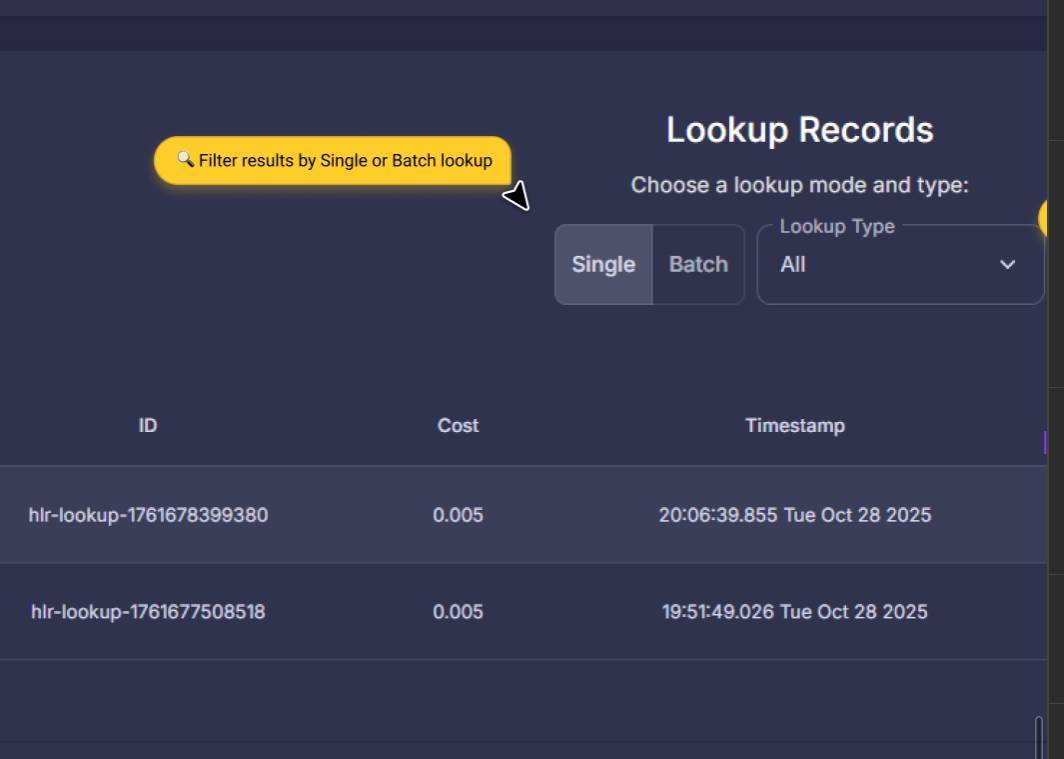
Detailed View
Click the eye icon (View Detailed) next to any batch to see the individual results for every number in that request.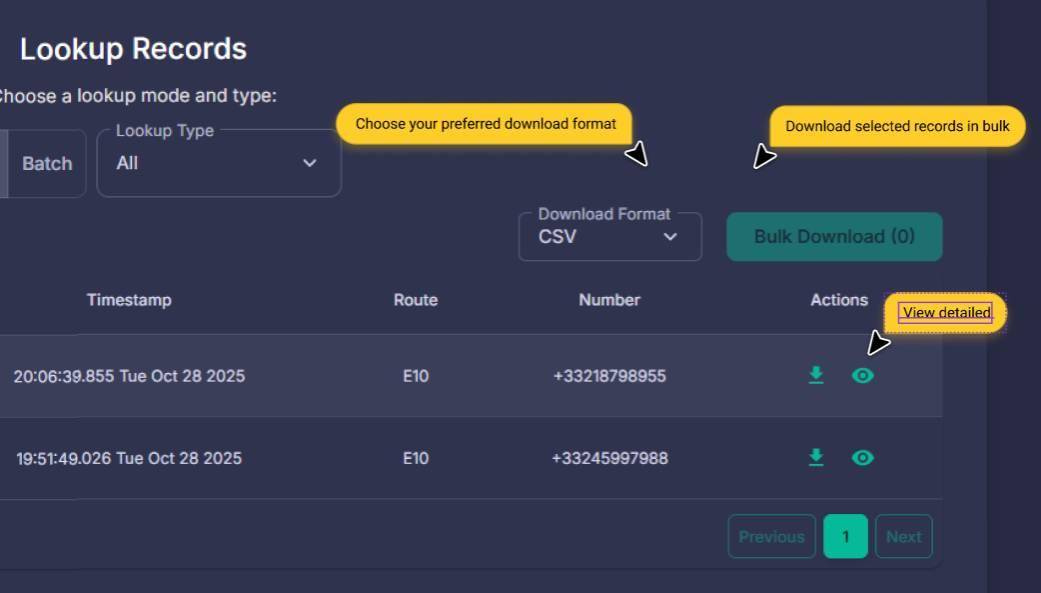
Bulk & Individual Downloads
Select multiple records for a Bulk Download or click the Download icon on a single row.
You can choose your preferred format: JSON, XLSX, or CSV.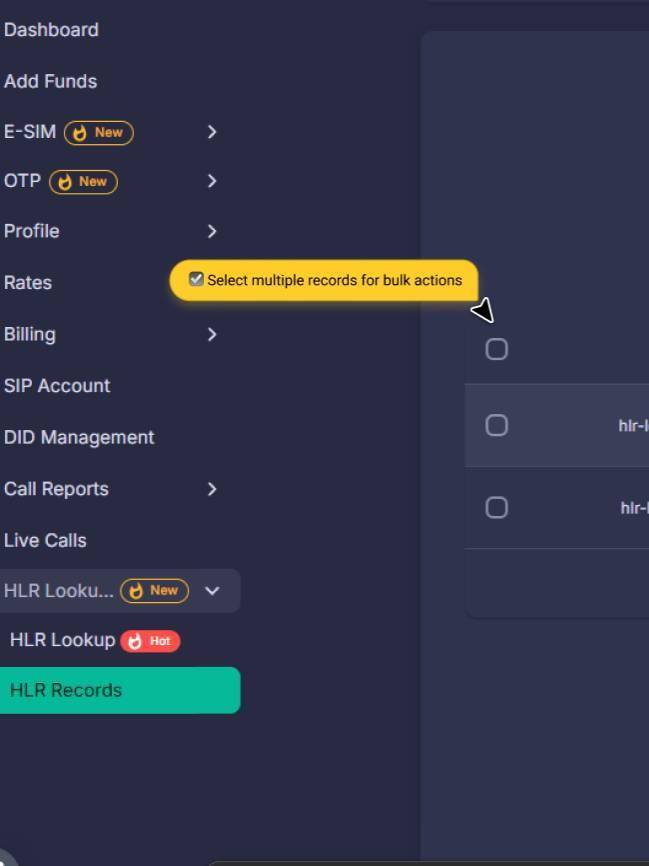
No previous post
How to Purchase, Install & Activate Your Bitcall eSIM The Complete Guide for 2026
On This Page
What You Will Need
What Information Does HLR Lookup Provide?
Lookup Types & Routes
How to Run a Lookup
Managing Your History (Lookup Records)