How to Set Up Your Bitcall SIP Account in MicroSIP (Windows)
How to Set Up Your Bitcall SIP Account in MicroSIP (Windows)
A simple guide to setting up your Bitcall SIP account in MicroSIP on Windows. This is one of the most lightweight and reliable softphones for PC users.

What You Will Need
An active Bitcall account (panel.bitcall.io)
Your SIP credentials: Username, Password, and Domain
A PC running Windows (7, 10, or 11)
MicroSIP installed (microsip.org)
IMPORTANT
Windows Security Warning
During installation, Windows might say "Windows protected your PC". Click More info → Run anyway. This is a standard warning for lightweight open-source apps.
Step 1: Open the Settings
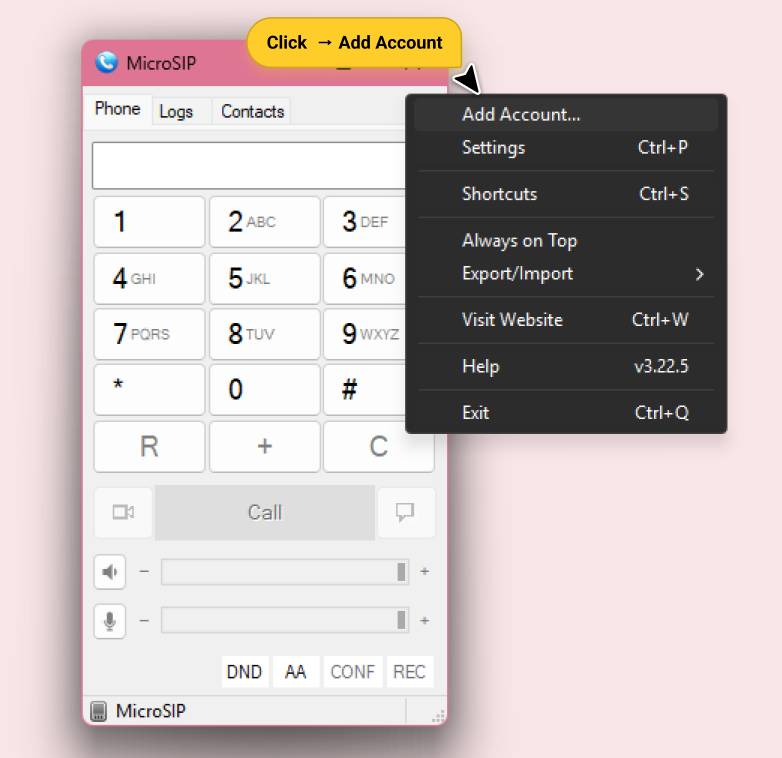
Launch MicroSIP. Click the small drop-down arrow in the top right corner and select Add Account.
Step 2: Enter Credentials
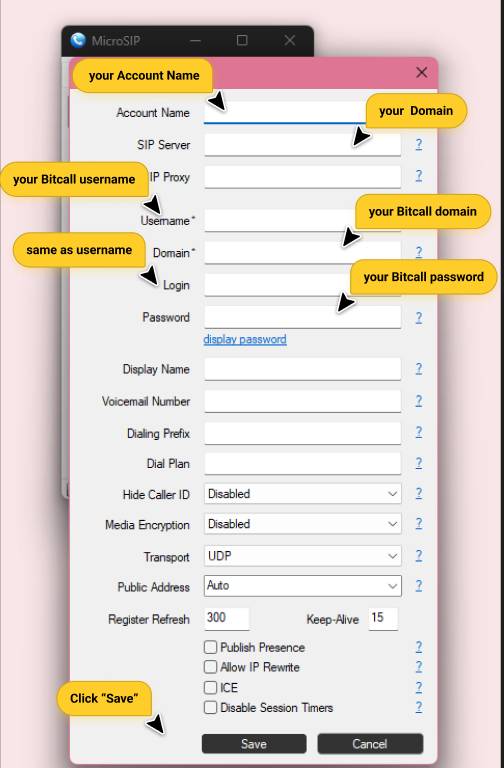
Fill in the following fields:
Account Name: Bitcall
SIP Server: gateway.bitcall.io
Username: Your Bitcall SIP username
Domain: gateway.bitcall.io
Password: Your Bitcall SIP password
Display Name: (Optional)
Step 3: Save & Verify
Click Save
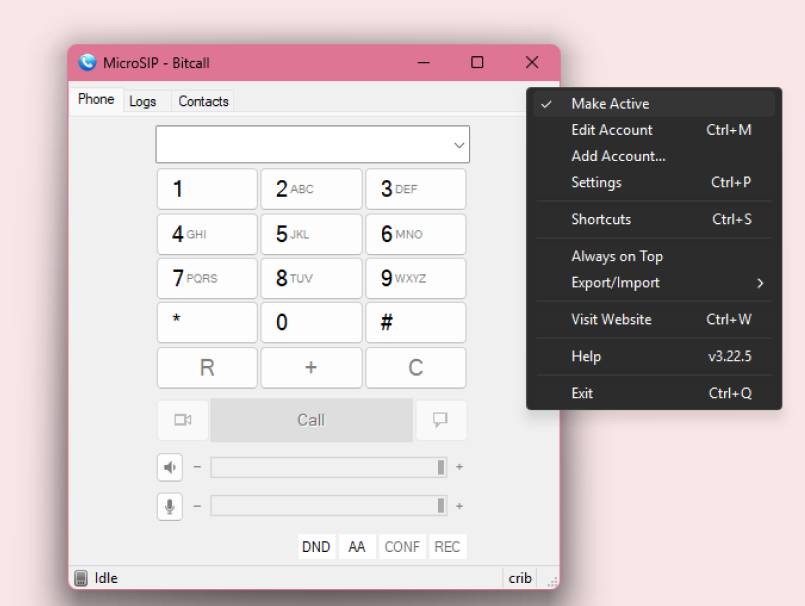
Look at the bottom left of the MicroSIP window. It should show Online or Ready
Making a Test Call
In the dialer, enter a number in international format (e.g., 13125550123 for USA)
Click the green Call button
If the call connects, your setup is 100% correct
Expected Result
Your status shows Ready at the bottom of the window. You can now use your PC as a professional business phone using your Bitcall account.
Troubleshooting
Status: Registration Failed: Check if your domain is missing a dot or has an extra space. Confirm your password is correct from the Bitcall panel
No Sound: Go to Settings in MicroSIP and ensure the "Ringing device" and "Speaker" are set to your headset/speakers
NAT / Firewall issues: Go to Settings and enable STUN. You can use stun.l.google.com:19302
Codec Error: Bitcall uses G.711 (uLaw/aLaw). Ensure these are not disabled in the MicroSIP settings menu
No previous post
How to Set Up Bitcall SIP on Zoiper Desktop & Mobile Guide for 2026
On This Page
What You Will Need
IMPORTANT
Step 1: Open the Settings
Step 2: Enter Credentials
Step 3: Save & Verify
Making a Test Call
Expected Result
Troubleshooting