How to Set Up Bitcall SIP on Linphone Desktop & Mobile Guide for 2026
How to Set Up Bitcall SIP on Linphone Desktop & Mobile Guide for 2026
A complete guide to setting up your Bitcall SIP account in Linphone on mobile (Android & iOS) and desktop (Windows, macOS, or Linux).

What You Will Need
An active Bitcall account: Go to panel.bitcall.io
Your SIP Username and Password.
Your Bitcall SIP Domain: Found in your SIP Account settings.
Linphone installed on your device: Download from linphone.org
Section 1: Linphone on Desktop [Desktop Step]
Step 1 Start the Assistant:
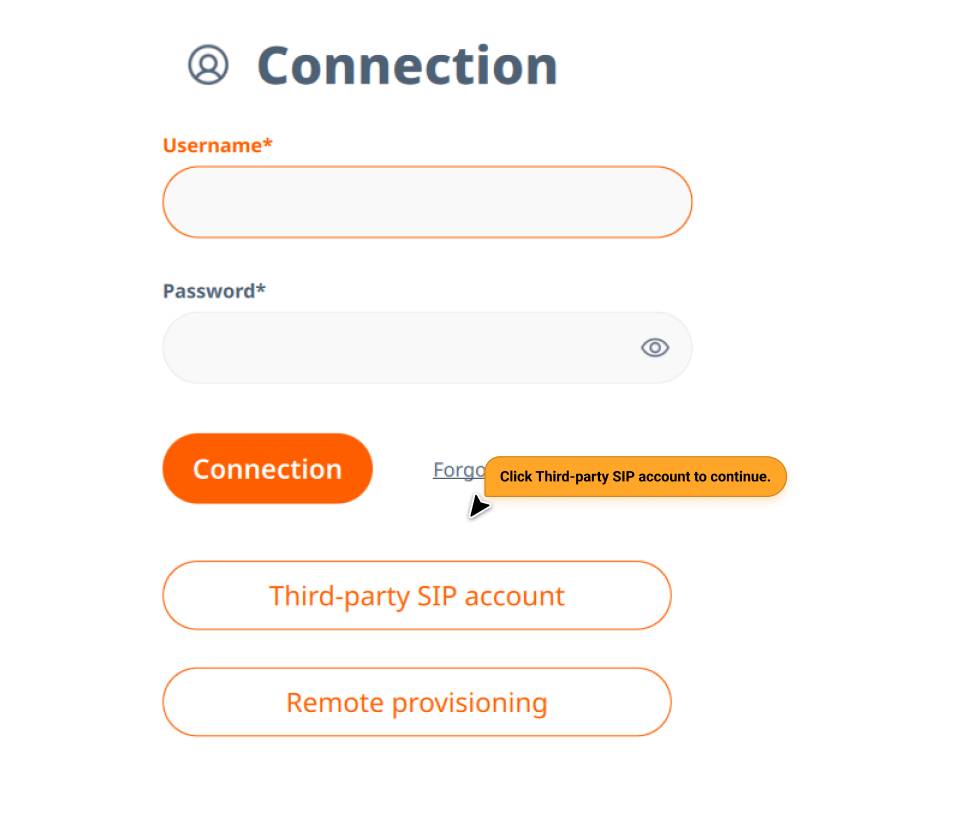
When you open Linphone for the first time, click on Assistant or Use SIP Account.
Step 2 Choose Third-Party SIP:
Click Fetch Remote Configuration or Use a SIP Account.
Choose Third-Party SIP Account.
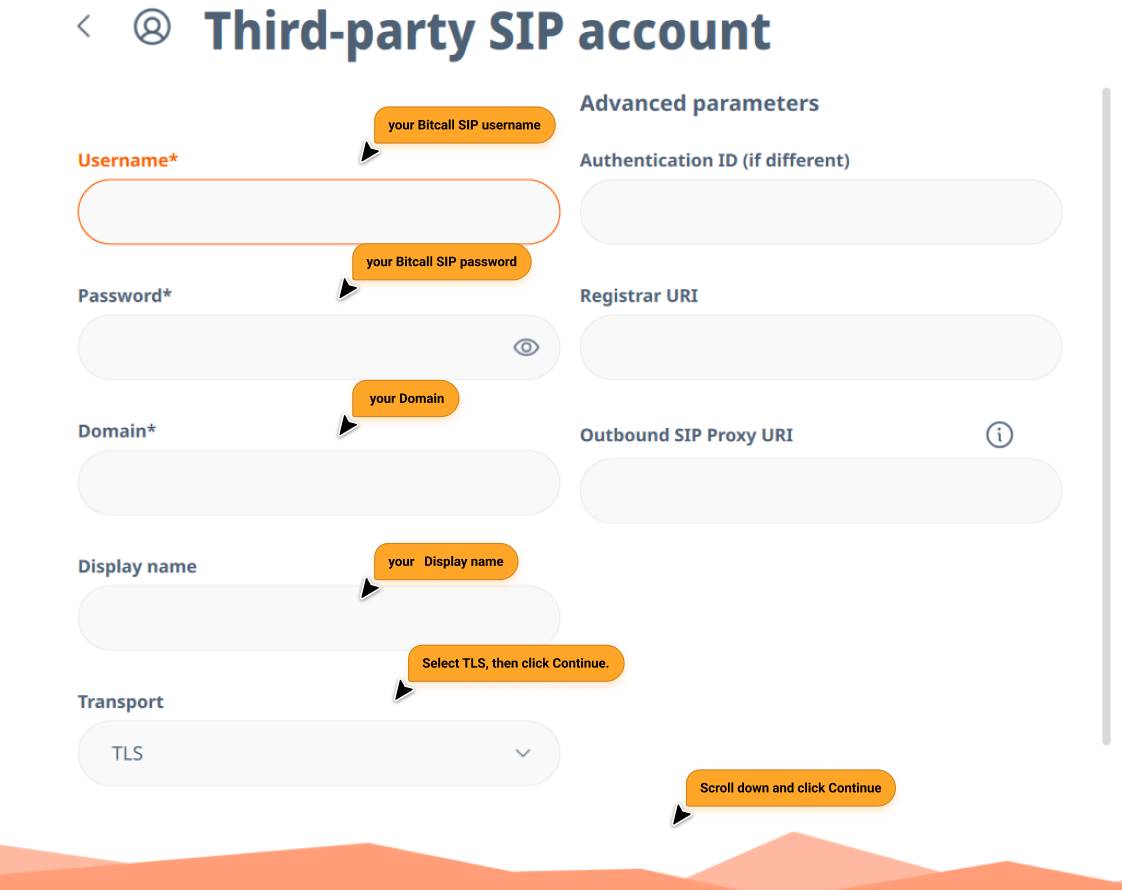
Step 3 Enter Details:
Username: Your Bitcall SIP username.
Password: Your Bitcall SIP password.
Domain: Enter your assigned Bitcall domain (e.g., gateway.bitcall.io).
Transport: Select TLS or UDP (TLS is more secure).
Step 4 Connect:
Click Confirm or Connect.
The status icon at the top should turn Green (Connected).
Section 2: Linphone on Mobile (Android & iOS) [Mobile Step]
Step 1 Open the Assistant:
Open the Linphone app and tap Use SIP Account.
Tap I Understand on the third-party warning.
Step 2 Enter Credentials:
Username: Your SIP username.
Password: Your SIP password.
Domain: Your Bitcall domain.
Display Name: (Optional) e.g., "Bitcall".
Step 3 Setup Transport:
Go to Advanced Settings if the connection doesn't happen automatically.
Ensure Transport is set to TLS if your network is restricted.
Tap Connect.
Expected Result
Your account status shows Registered or shows a green dot. You can now dial numbers in international format (e.g., 336... or 447...) to start calling.
Troubleshooting
Registration failed: Verify there are no extra spaces in your password. Double-check your username.
Call Disconnects: Try switching the transport from TLS to UDP in the account settings.
No Sound: Ensure Linphone has permission to use your Microphone. Go to Settings → Audio and verify the playback device is correct.
Behind a strict firewall: Go to Network Settings and enable ICE or enter a STUN server (e.g.,
stun.l.google.com:19302).
How to Set Up Bitcall SIP on Bria Desktop & Mobile Guide for 2026
No next post
On This Page
What You Will Need
Section 1: Linphone on Desktop [Desktop Step]
Section 2: Linphone on Mobile (Android & iOS) [Mobile Step]
Expected Result
Troubleshooting