How to Set Up Bitcall SIP on Bria Desktop & Mobile Guide for 2026
How to Set Up Bitcall SIP on Bria Desktop & Mobile Guide for 2026
A complete guide to connecting your Bitcall SIP account to Bria on Android, iOS, Windows, and macOS.

What You Will Need
An active Bitcall account: Go to panel.bitcall.io
Your SIP Username, Password, and Domain.
A Bria account: Bria requires a separate subscription or trial to use the app.
IMPORTANT
Before You Start: Bria requires its own login. You must first create a Bria account on their website (counterpath.com) and log in to the app before you can add your Bitcall SIP trunk.
Section 1: Bria on Mobile (Android & iOS) [Mobile Step]
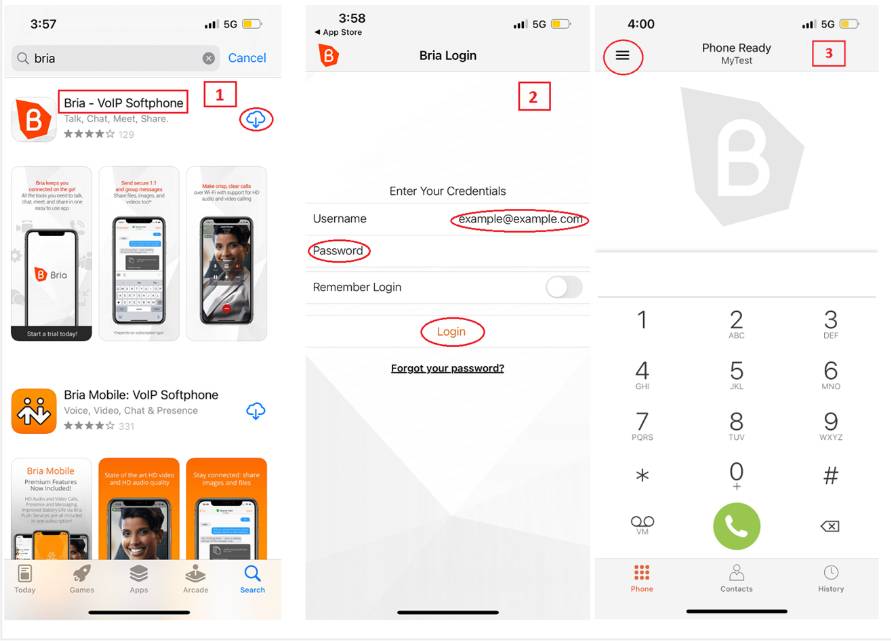
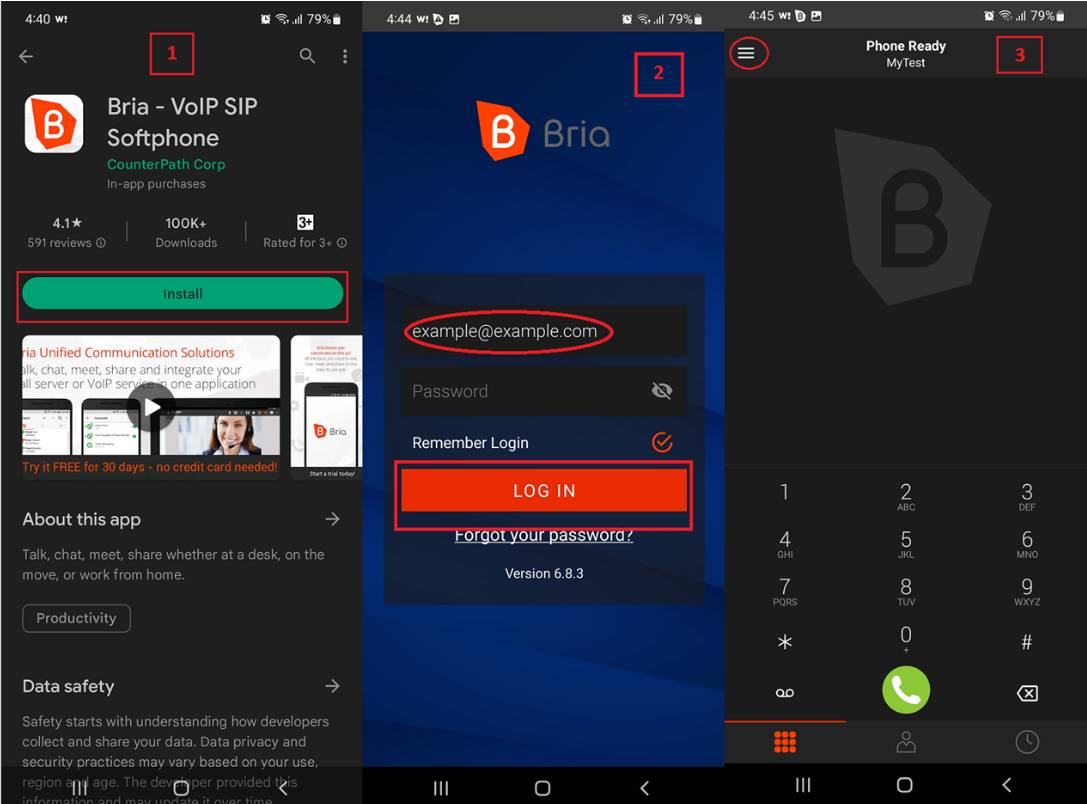
Step 1 Log in to Bria:
Open the app and log in using your Bria credentials (not your Bitcall details).
Step 2 Add SIP Account:
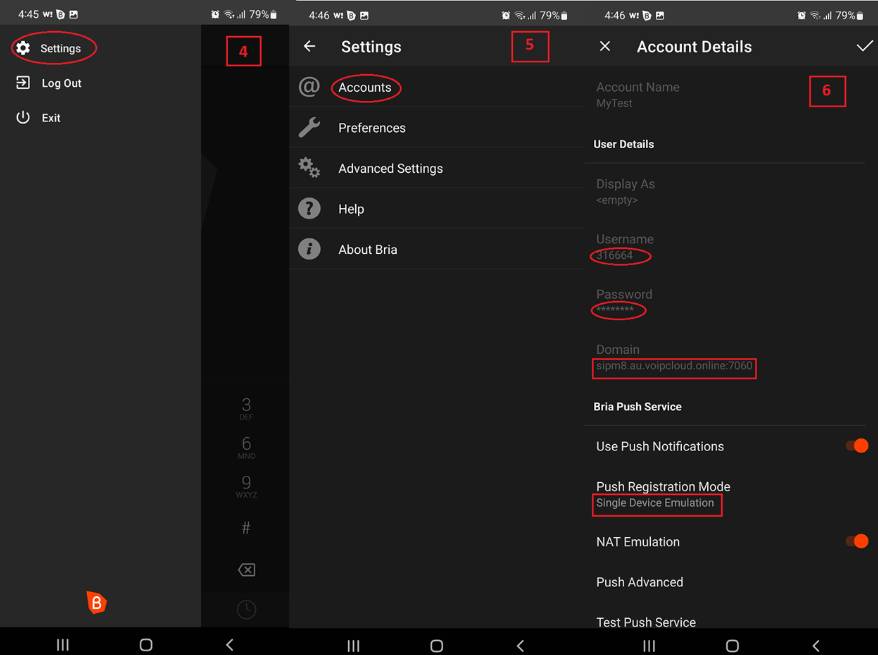
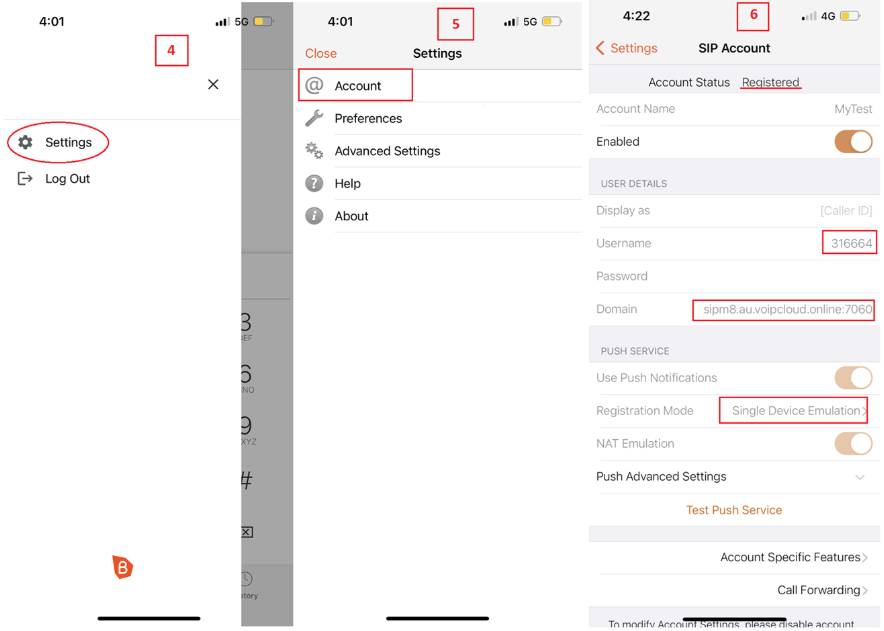
Go to Settings → Accounts.
Tap the + icon to add a new account.
Select SIP (Voice only).
Step 3 Enter Bitcall Account Details:
Account Name: Bitcall
User ID: Your Bitcall SIP username.
Domain: Your Bitcall SIP domain (e.g., gateway.bitcall.io).
Password: Your Bitcall SIP password.
Display Name: (Optional).
Step 4 — Save & Register:
Tap Checkmark / Save.
Bria will attempt to register. Status should change to Registered.
Section 2: Bria on Desktop (Windows & macOS) [Desktop Step]
Step 1 — Open Account Settings:
Open Bria, go to Softphone → Account Settings.
Step 2 — Add New Account:
Click the arrow next to "Add" and select SIP Account.
Step 3 — Enter Credentials:
User ID: Your Bitcall SIP username.
Domain: gateway.bitcall.io.
Password: Your Bitcall SIP password.
Display Name: Bitcall.
Authorization Name: (Enter your username again).
Step 4 — Apply Changes:
Click OK / Apply.
The account should show Enabled in the list.
Expected Result
The Bria status light turns green. You are now ready to make calls. Note that balance and pricing are still managed through your Bitcall panel.
Troubleshooting
Account not registering: Most common issue is a typo in the Domain. Ensure it is exactly as shown in your Bitcall panel.
Call Fails (Service Unavailable): Go to Account Settings → Transport and change it from UDP to TCP. Some mobile carriers block UDP traffic.
Authorization Name: Ensure the Authorization Name field is identical to your User ID if the connection is rejected.
Audio Permission: Ensure Bria has access to your PC/Phone microphone in the system privacy settings.
How to Set Up Bitcall SIP on Zoiper Desktop & Mobile Guide for 2026
How to Set Up Bitcall SIP on Linphone Desktop & Mobile Guide for 2026
On This Page
What You Will Need
IMPORTANT
Section 1: Bria on Mobile (Android & iOS) [Mobile Step]
Section 2: Bria on Desktop (Windows & macOS) [Desktop Step]
Expected Result
Troubleshooting