How to Set Up Bitcall SIP on Zoiper Desktop & Mobile Guide for 2026
How to Set Up Bitcall SIP on Zoiper Desktop & Mobile Guide for 2026
A step-by-step guide to connecting your Bitcall SIP account to Zoiper on any device iPhone, Android, Windows, or Mac.
What You Will Need
An active Bitcall account: Go to panel.bitcall.io
Your SIP username and password.
The Bitcall SIP domain: gateway.bitcall.io
Zoiper installed on your device: Download from zoiper.com
Section 1: Zoiper on Mobile (Android & iOS) [Mobile Step]
Step 1 Download & Open:
Download Zoiper from the Google Play Store or Apple App Store and launch the app
Step 2 Enter Credentials:
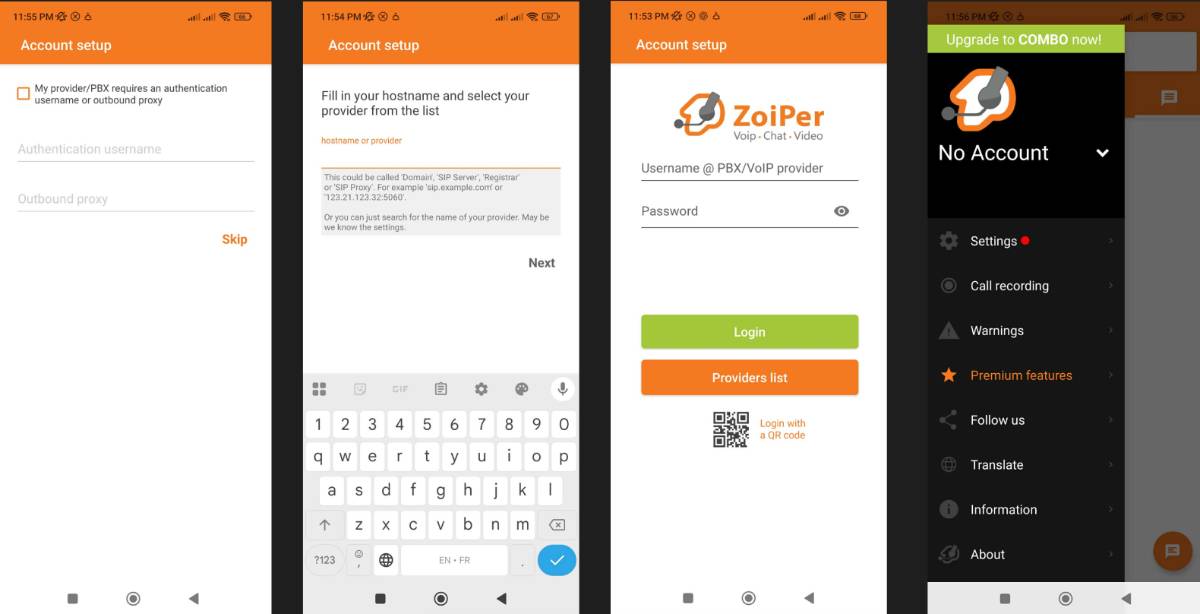
Username: Enter your Bitcall SIP username.
Password: Enter your Bitcall SIP password.
Click Create an account.
Step 3 Enter SIP Domain:
In the Hostname field, enter: gateway.bitcall.io
Click Next.
Step 4 Skip Options:
If Zoiper asks for an Authentication username or Outbound proxy, click Skip.
Step 5 Confirm Registration:
Zoiper will test the connection. Once it finds "SIP UDP" or "SIP TCP", click Finish.
Your account should now show a green checkmark or the word Registered.
Section 2: Zoiper on Desktop (Windows & macOS) [Desktop Step]
Step 1 Install Zoiper 5:
Download Zoiper 5 from the official website and open the application.
Step 2 Add Account:
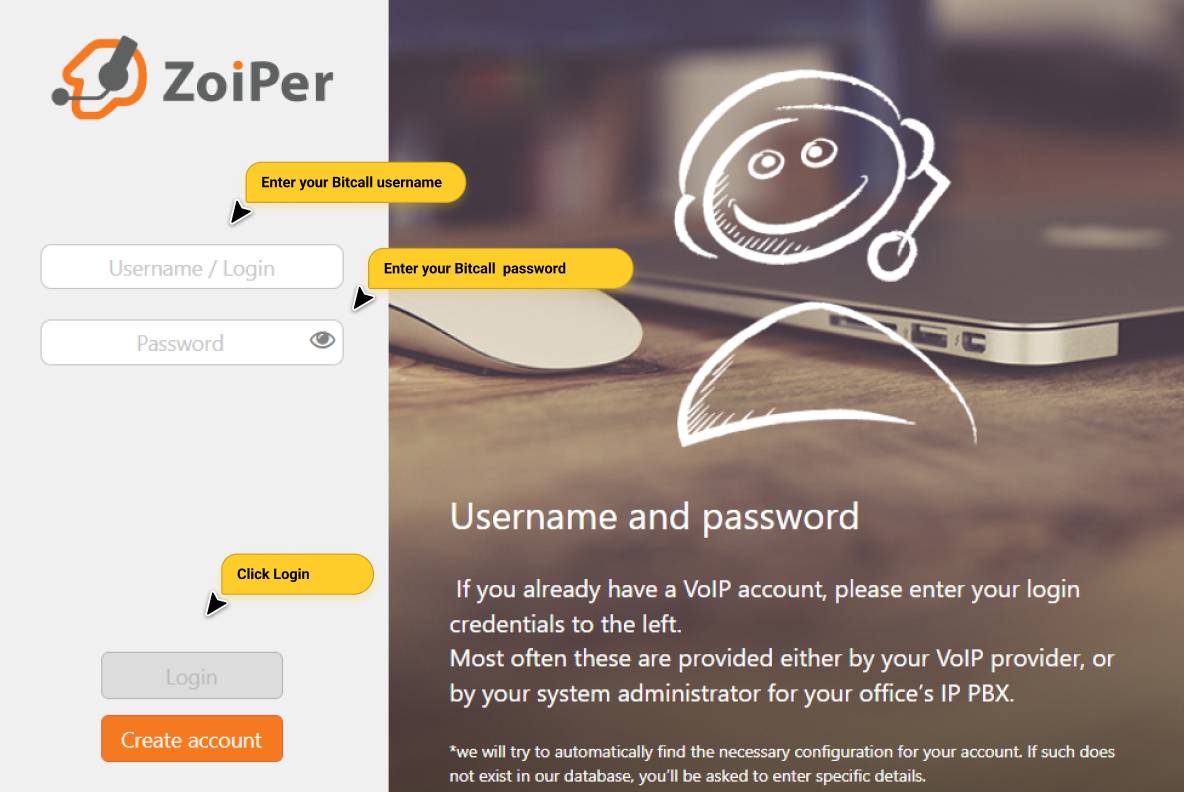
Click on Continue as a Free user (unless you have a Pro license).
Enter your Username and Password from the Bitcall panel.
Click Login.
Step 3 Hostname:
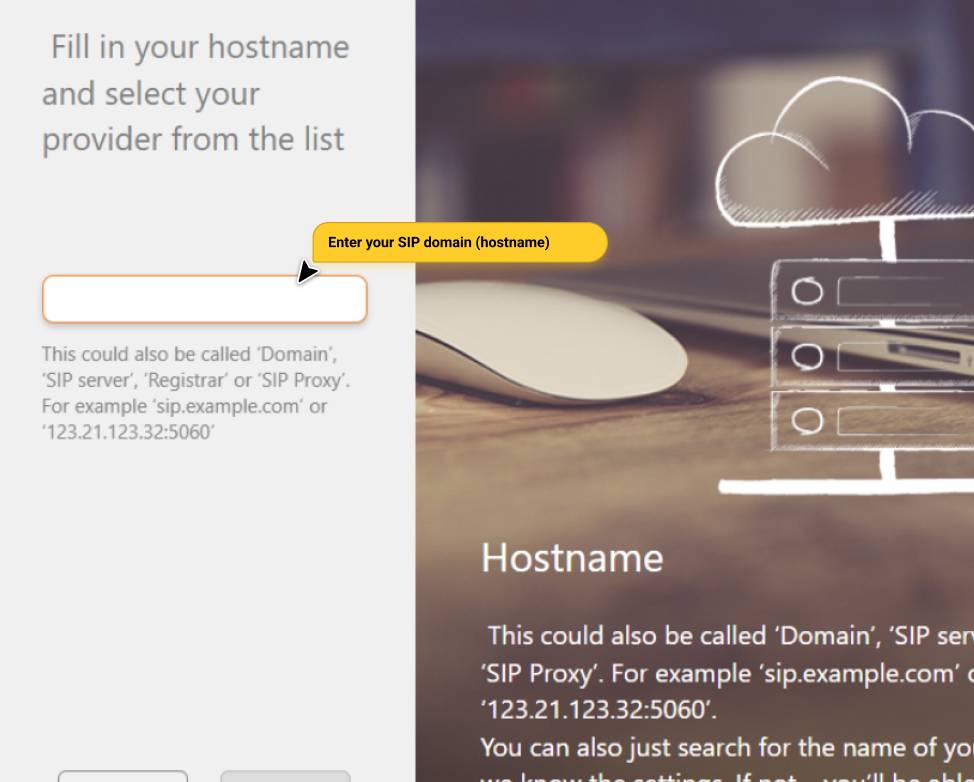
Enter gateway.bitcall.io in the hostname field and click Next.
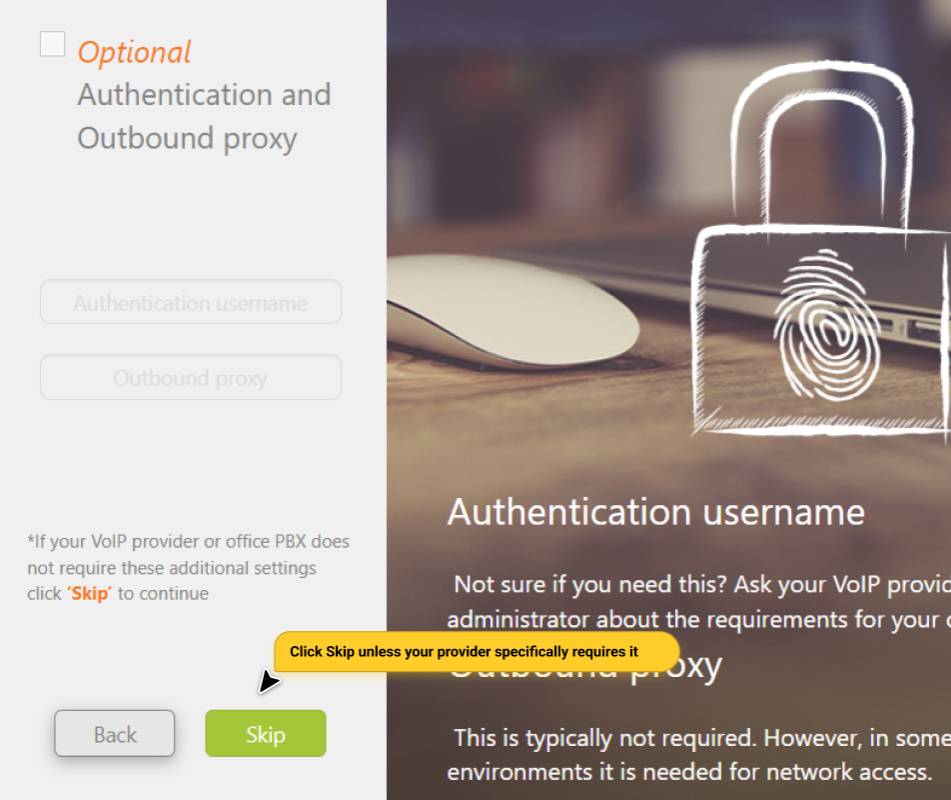
Step 4 Skip Optional Steps:
Click Skip on the optional proxy screen.
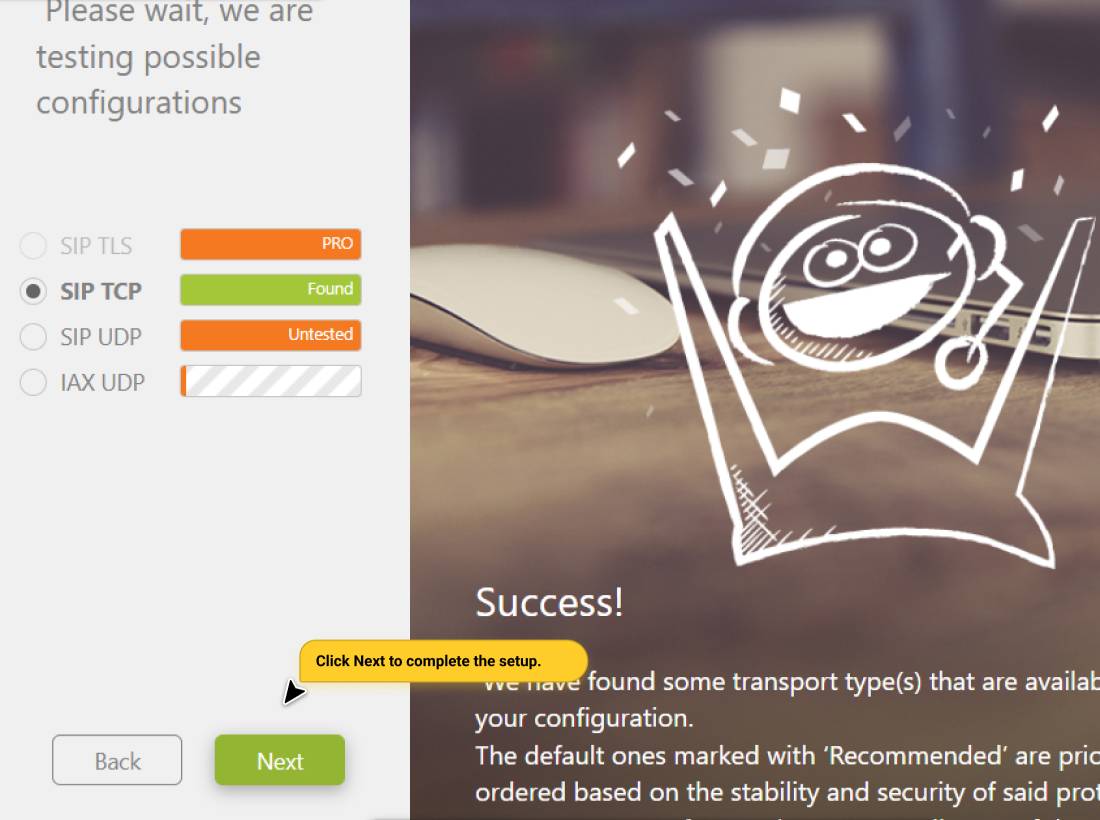
Step 5 Verify Status:
Zoiper will run a test. Click Next once a connection is found.
Your status in the top left should show Registered.
Expected Result
Your Bitcall SIP account shows as Registered (Green status). You can now make and receive calls globally through Zoiper using your Bitcall numbers.
Troubleshooting
Registration failed: Double-check your username and password. Cloudflare or VPNs can sometimes block the connection — try switching to mobile data to test.
No audio on calls: Go to Zoiper Settings → Audio. Ensure that uLaw (G.711u) and aLaw (G.711a) are the top enabled codecs.
Transport issues: If UDP is blocked on your network, go to Account Settings → Network and switch the transport type to TCP or TLS.
One-way audio: Enable STUN in the network settings to help with NAT traversal.
How to Set Up Your Bitcall SIP Account in MicroSIP (Windows)
How to Set Up Bitcall SIP on Bria Desktop & Mobile Guide for 2026
On This Page
What You Will Need
Section 1: Zoiper on Mobile (Android & iOS) [Mobile Step]
Section 2: Zoiper on Desktop (Windows & macOS) [Desktop Step]
Expected Result
Troubleshooting